Online Video Compressor — Shrink Files Without Losing Quality with AudFab
Large video files slow down everything: email attachments bounce, uploads crawl, and your phone runs out of storage faster than you can clear old clips. AudFab Online Video Compressor solves this without asking you to install anything. This article explains why online compression beats desktop alternatives for most users, how compression preserves quality when done right, and how to use AudFab to get a noticeably smaller file in just a few steps.
Why Compress Video Online Instead of on Desktop
Desktop video compressors do the job, but they come with friction that gets in the way of a simple task:
- No install, no setup. An online compressor is ready the moment you open its URL. You don't wait through an installer, you don't hunt for the right codec pack, and you don't need admin rights on the machine you're using.
- Your laptop stays cool. Compression is a CPU-heavy workload. Running it on a cloud server means your own laptop doesn't heat up, throttle, or drain its battery while you work.
- Same tool, every device. Whether you're on a company laptop, a personal MacBook, a Chromebook, a tablet, or a phone, the same AudFab page works. The output is identical — it doesn't depend on your device's hardware.
- Always the newest codec support. Server-side updates add newer codecs and fixes without you having to download a new installer.
For occasional file-shrinking — a clip for email, a demo for a client, a reel for social media — the cloud approach is simply lower friction.
How Online Compression Preserves Quality
"Smaller file, same quality" sounds like magic, but it's really just smart use of codecs. A modern codec like H.264 or H.265 can describe the same visual content in far fewer bytes than older formats like MJPEG or early MPEG-2. On top of that, compression relies on two main levers:
- Bitrate — how many bits of data the codec is allowed to spend per second of video. Lower bitrate means smaller file, but too low and you start seeing blocky artifacts in motion.
- Resolution — the number of pixels in each frame. Dropping from 4K to 1080p roughly quarters the data, often with no visible impact on a normal screen.
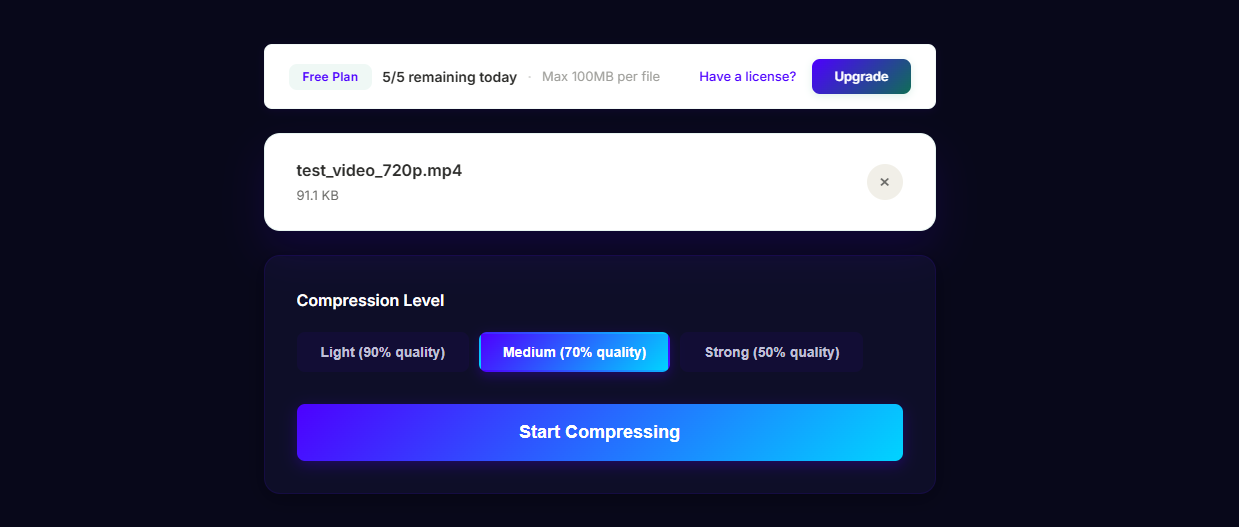
AudFab Online Video Compressor picks sensible defaults for each preset, so you don't have to become a codec expert. If you want more control, you can pick a target size, a target quality level, or set your own bitrate.
Supported Sources and Target Formats
AudFab compresses the formats you're most likely to encounter in everyday use:
- Input formats: MP4, MOV, AVI, WebM, MKV, FLV, WMV, and more.
- Output container: MP4 by default for maximum compatibility, with the option to keep MOV or WebM.
- Output codec: H.264 by default (works natively everywhere), or H.265 if you want smaller files and your destination supports it.
- Quality presets: Web-friendly, Mobile-friendly, Email-ready, Custom.
Whatever device filmed the original — phone, camera, screen recorder, drone — the compressed file will play on virtually any modern device.
Step-by-Step Compression with AudFab
Here's what using AudFab looks like end-to-end:
- Open the compressor page in your browser. No login needed for a first try.
- Drop in your video. Drag and drop or pick from your device. Upload runs over HTTPS.
- Choose a preset or target size. "Email-ready under 25 MB" is a popular quick choice. You can also set a custom resolution or bitrate if you need it.
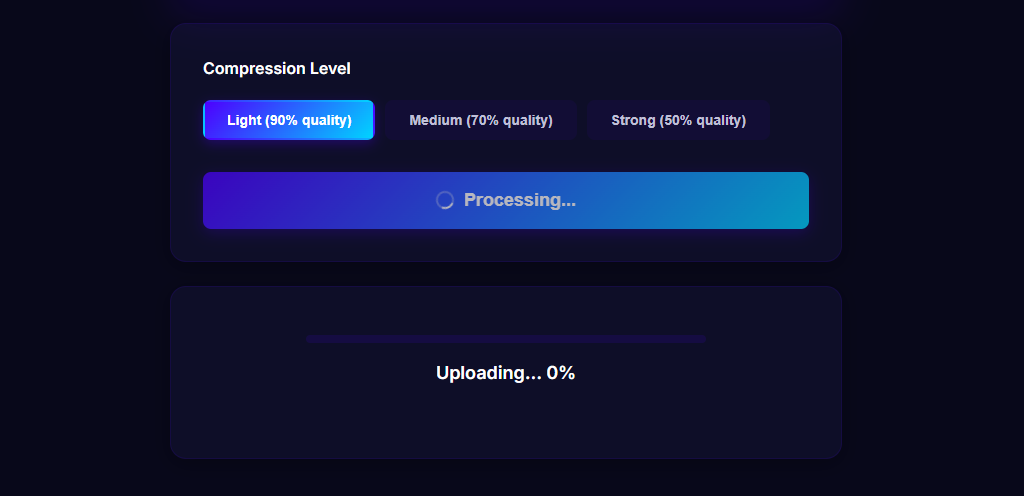
- Start compression. The cloud server handles the processing. The progress bar updates live on the page.
- Download the smaller file. When it's done, you'll see the original size next to the new size so you can confirm the reduction before downloading.
Common real-world results: a 4K 2-minute phone video cut from 600 MB down to 70 MB, an AVI home movie reduced from 2 GB to 250 MB, a screen recording brought under a team chat's attachment limit.
Tips for Smaller Files Without Visible Quality Loss
A few simple tricks make a big difference:
- Drop resolution first, bitrate second. If you're sending a clip to be viewed on phones, 1080p is almost always enough — 4K is overkill and bloats the file for no perceptual benefit.
- Trim before compressing. Cutting off a silent intro or a dragging outro can reduce file size as much as re-encoding the whole thing.
- Match the destination. A clip for a 720p messaging app doesn't need a 4K master. Compress to the destination, not to the source.
- Pick H.265 when supported. Roughly half the file size of H.264 at the same visual quality. Modern phones and browsers handle it well.
Every AudFab preset is tuned with these ideas in mind, so even the defaults get most of the way there.
Frequently Asked Questions
Will AudFab degrade my video's quality?
Only as much as you ask it to. Compression is always a trade-off, but AudFab's presets are tuned so the visible difference is minimal at sensible target sizes. You can preview before downloading.
Can I compress multiple videos at once?
Yes. Batch compression is available on paid plans, which keep the same quality presets but process files in parallel.
Is there a file size limit?
Free usage has a generous per-file limit; paid plans raise it for large masters and batch runs.
Are my files private during compression?
Yes. All transfers use HTTPS, and uploaded files are retained only long enough to finish compression and let you download the result. Then they're removed from AudFab's servers automatically.